Build an audience that grows your SaaS.
Your AI co-producer turns your expertise, market, and product into a continuous stream of short-form content, from strategy and ideation to editing and publishing.
Produced in minutes.
From idea to finished clip.
Built to help SaaS founders grow an audience and turn attention into customers through short-form content.
Provide ANY raw ideas / images / references / screen recordings or let the engine auto-generate high-retention video ideas trained on proven hooks and viral formats directly on Your Calendar.
The agent watches your footage to track faces, silhouette contours, and UI interactions while detecting natural pauses—ensuring overlays never block subjects and applying dynamic zooms and pans to key focal points.
NOT just Limited to Motion Graphics, It supports Generative Videos, Screen Recordings, Images, SVGs, Stock Videos/Images, Avatars, SFX and Music.
Automates the entire editing suite—Brand compliant Design & Graphics, Storytelling, Dynamic screen zooms, Kinetic captions, Sound design, and Pacing—delivering polished 9:16 short-form videos ready to publish.
March 2026
12 Posting SlotsIf you are a SaaS founder spending 15 hours/week editing video ads, watch this video:
How a solo SaaS founder hit $10k MRR in 30 days posting 3 automated short-form videos per day:
Stop paying $20/month for Higgsfield when it takes 45 minutes to render rigid templates. Here's what we use instead:
Ranking every AI video generator from S Tier to F Tier so you don't waste 40 hours testing them:
I almost lost my entire launch because our video editor quit 24 hours before go-live. Here's what saved us:
Most founders don't realize there is a 12-month window before short-form video ads get saturated.
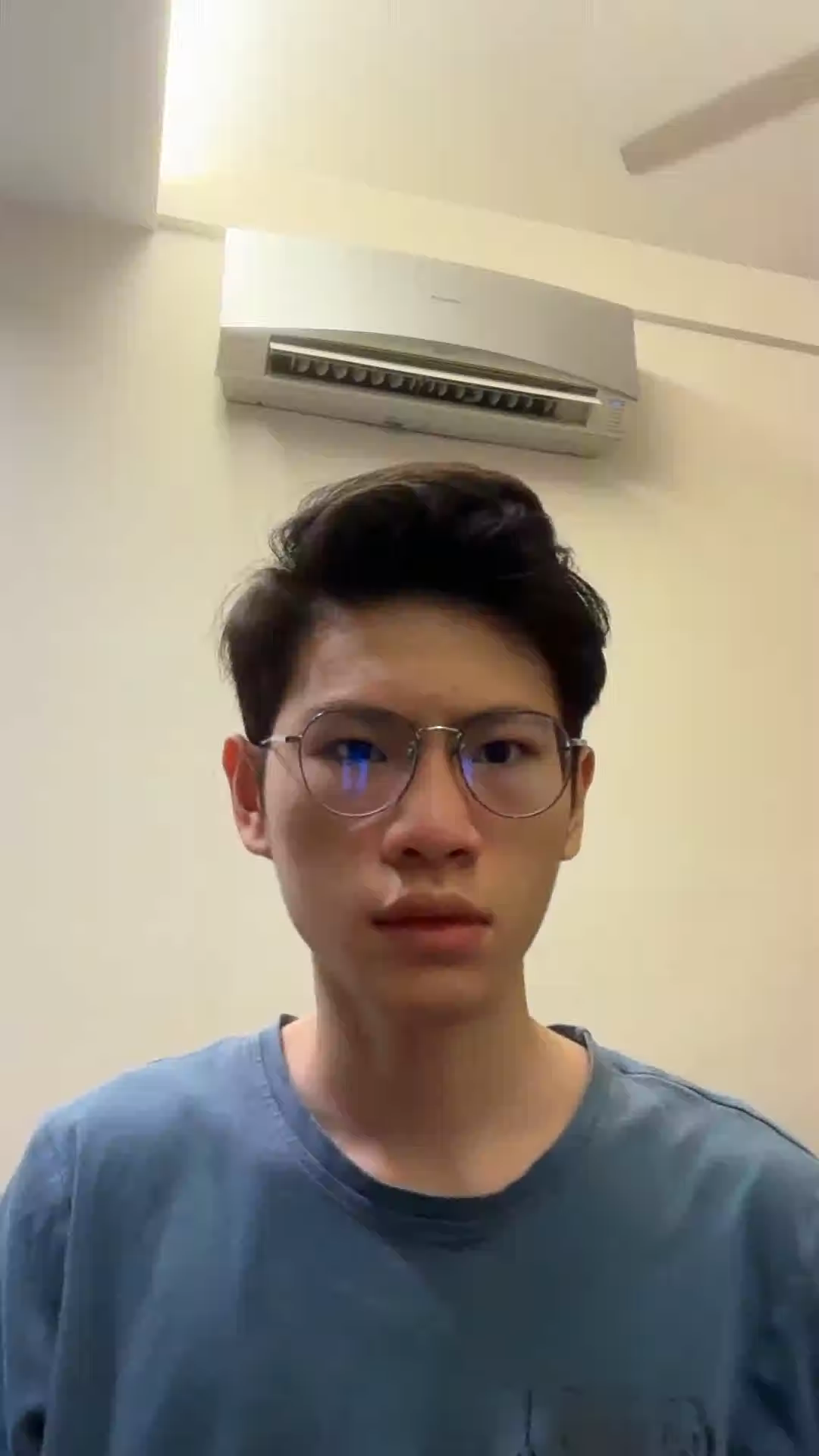
Presenter face tracking is locked strictly to the first frame coordinates.
Ensures editing canvas overlays (captions, assets splits) never block presenter's face coordinate limits.
“Hate editing videos? AI makes motion graphics insane now”
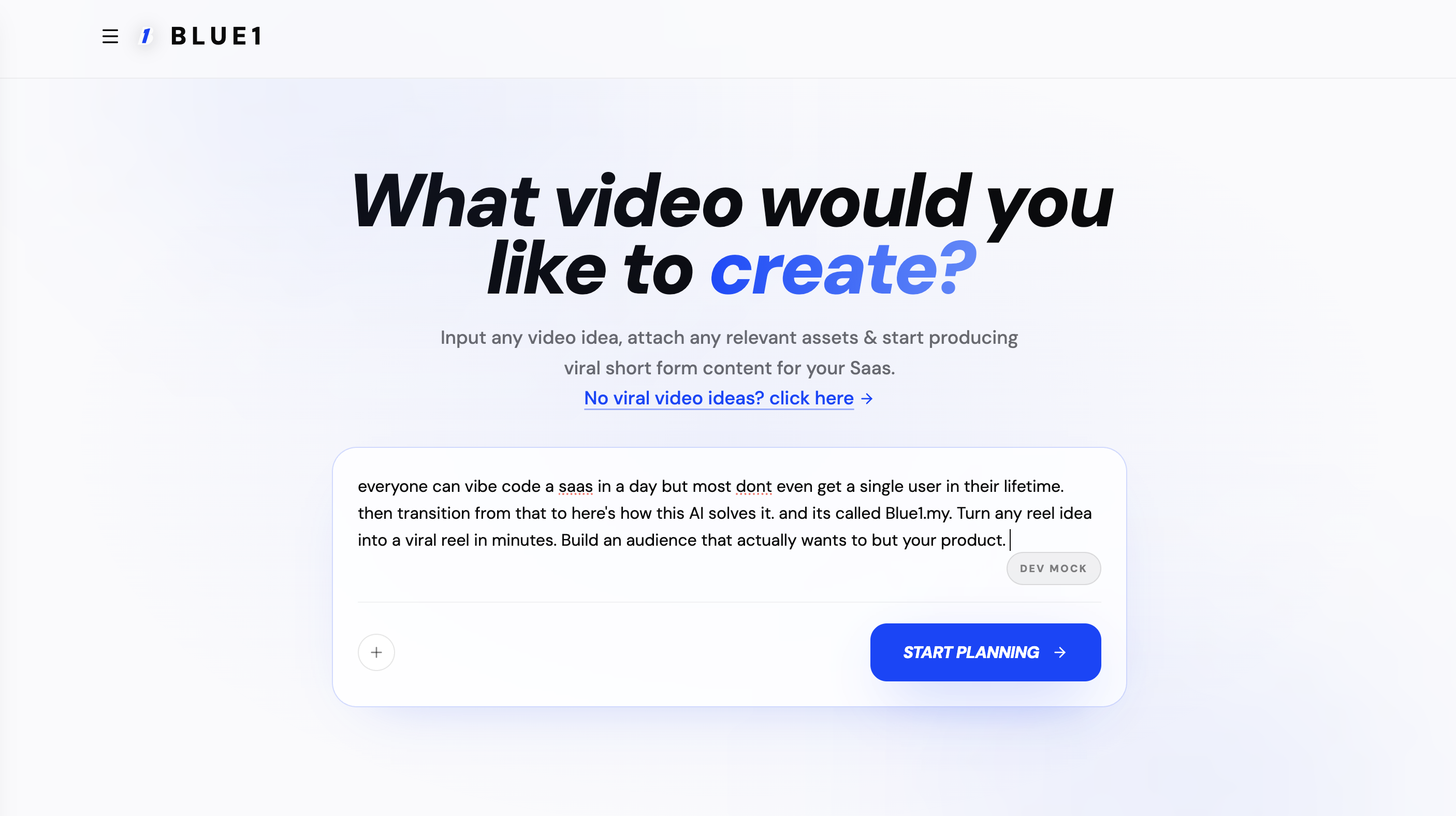
A Blue1 web app landing page invites users to enter a video idea and start planning viral short-form content.
From the founder
I was a YouTube content creator posting gaming content on YouTube & Instagram, and grew a channel to 200k subscribers on YouTube and 20k followers on Instagram. I saw a gap as many founders are inconsistent with posting content. So I decided to combine my expertise and experience of viral video creation workflow to build this.
Join now and get 20% off your first month at release.
Refer friends to climb the ladder and unlock even bigger discounts — up to 50% off for three months.
20% off for 1 months
Secured when you join the waitlist.
30% off for 1 months
Get referred, or invite 1 colleague.
40% off for 2 months
Reach 4 points (invite 3 colleagues).
50% off for 3 months
Reach 6 points (invite 5 colleagues).
Your reward
20% off your first month at release
Every waitlist member is secured for 20% off their first month. Get referred or invite a colleague to climb the ladder and lock in up to 50% off for three months.
Join the waitlistFAQ
No. It's built as a co-producer for SaaS content, covering ideation, understanding, production, editing. rather than simply generating a video from a prompt.
You can fine tune/make final adjustments/edit text with ai assitance /manually in a built in timeline editor.
No. You can combine your existing product footage, screen recordings, images, and other references with generated media.
Yes. The system is designed to understand product screenshots, screen recordings, and other visual references so the content can actually show your product rather than inventing a generic one.
No. We deliberately don't rely on fully generated avatars. For founder-led content, even small visual imperfections can undermine trust. The focus is on working with real footage and making it better.
It can understand what's happening on screen and make production decisions around it, including automatically zooming and panning toward important areas.
Yes. It can understand faces, speech, timing, and other visual information to create tighter edits, including removing pauses and stutters and aligning edits with speech.
The goal isn't simply to make editing faster. The co-producer handles the decisions around what to create, what footage to use, how to structure it, and how to turn it into finished content.
No. The product is designed to handle the production work for you.
Yes. Content can be developed across TOFU, MOFU, and BOFU, depending on whether the goal is reach, consideration, or conversion.
Yes. Ideation is part of the workflow, so you aren't starting with an empty timeline or a blank prompt.
No, currently its unsupported.
Pricing is still being finalized, I will be a lot cheaper than your typical generative AI Models. Join the waitlist to get early access and updates.
Blue1 · © 2026